Top 10 Best Computer Specs For Blender: Must-See Picks
best computer specs for blender shape how smoothly 3D work feels from the first viewport orbit to the final render. For artists, animators, and designers, the right hardware can change everything, from scene complexity and simulation speed to ray tracing performance and multitasking stability. This guide explores the best computer specs for blender alongside close questions like ideal Blender PC specs and Blender rendering hardware, so you can understand what truly matters before buying.
Processor cores, graphics acceleration, RAM capacity, SSD responsiveness, and cooling design all influence whether a system can keep up with demanding modeling workflows. The details can be surprisingly technical, and the wrong balance may leave even powerful setups underperforming.
Here is what separates a capable machine from one that actually keeps pace with creative ambition.
Detailed Reviews of the Best Computer Specs for Blender
1. Adamant Custom 24-Core Media Editing Rendering Modelling AI Learning Workstation
No products found.
Best for: High-core AI and rendering heavywork.
A 24-core Intel Core Ultra 9 285K running at 3.7 GHz gives this workstation the kind of CPU headroom Blender users notice most in viewport responsiveness, simulation prep, and background multitasking. Paired with 64GB DDR5 memory, it keeps complex scenes moving without immediate slowdowns when you stack geometry, textures, and add-ons.
The 360mm AIO liquid cooler matters here because long Blender sessions can keep the processor under sustained load, and the cooling helps the system hold performance instead of throttling. A 1TB M.2 NVMe 990 EVO Gen4 SSD gives fast project loading and saves, while the 16GB GeForce RTX 5070 Ti brings dedicated GPU acceleration for rendering workflows that can use it. The 850W Smart power supply gives the machine enough electrical overhead for the CPU and GPU combination. Windows 11 Pro 64-bit, Wi‑Fi 7 2×2, and Bluetooth v5.4 round out a tower that is set up for a modern workstation desk.
Pros
- 24-core Intel Core Ultra 9 supports heavy Blender workloads
- 64GB DDR5 memory helps with large scenes and multitasking
- 16GB GeForce RTX 5070 Ti adds strong dedicated GPU rendering support
- 360mm AIO liquid cooler helps sustain performance during long sessions
Cons
- Only 1TB of SSD storage, so large asset libraries may outgrow it quickly.
This is a strong pick for Blender users who care more about CPU threading and GPU acceleration than compact size. It suits creators handling big scenes, AI-assisted tools, and frequent rendering runs in a single tower.
| Specification | Details |
|---|---|
| CPU Model | Intel Core Ultra 9 |
| CPU Speed | 3.7 GHz |
| Core Count | 24-Core |
| Memory | 64GB DDR5 |
| Storage | 1TB M.2 NVMe 990 EVO Gen4 |
| Graphics Card | Nvidia Geforce RTX 5070 Ti 16GB |
| Power Supply | 850W |
| Cooling | 360mm AIO Liquid Cooler |
| Wireless | Wi‑Fi 7 2×2, Bluetooth v5.4 |
I would put this on the short list for Blender users who want strong CPU threading and a capable Nvidia card in the same machine. The 64GB of DDR5 is especially useful once scenes get dense, and the 24-core processor should help when the project involves simulation, compositing, or frequent multitasking. It makes the most sense for serious hobbyists and freelancers who need a balanced workstation rather than a bare-minimum desktop.
2. CPU Solutions VidCore Core Ultra 9 Video Editing PC, HD
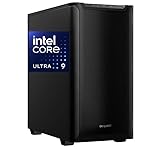
- Our VidCore video editing computer features a 15th Gen Intel Core Ultra 9 285K 5.7 GHz Turbo Processor - 24-Core - Turbo Boost...
- EFFICIENT COOLING SYSTEM—The system is housed in a sleek computer tower with a 650W power supply designed to stay cool under...
- Harness Professional-Grade Graphics for Stunning Visuals & Connectivity: Maximize your video editing potential with the powerful...
Best for: Balanced tower for editing pipelines.
A 15th Gen Intel Core Ultra 9 285K with 24 cores gives this tower the compute density Blender users want for multitasking, physics work, and heavy scene management. The 2TB memory storage capacity also means more room for project files, caches, and local asset libraries before you start juggling external drives.
The 650W power supply and all-in-one liquid cooler are practical details for a workstation that is expected to stay composed during long rendering or baking runs. Its dedicated Nvidia Quadro RTX 2000ada 16GB graphics coprocessor is aimed at professional workloads that benefit from stable GPU support rather than a gaming-first focus. The computer tower form factor leaves room for sustained airflow, and the 76MB cache supports quick access to frequently used data. Because the machine is positioned for video editing, it also fits Blender users who move between animation, compositing, and timeline work in one workflow.
Pros
- 24-core Intel Core Ultra 9 handles demanding Blender workloads
- 2TB storage gives room for project files and caches
- Dedicated Nvidia Quadro RTX 2000ada 16GB supports GPU-accelerated work
- 650W power supply supports a workstation-class tower build
Cons
- The available specs do not list RAM capacity, so memory headroom is unclear from the product data.
This tower fits Blender buyers who want a roomy workstation with a professional-leaning GPU and plenty of local storage. It is a sensible option for artists who also edit video and keep a lot of assets on the machine.
| Specification | Details |
|---|---|
| Brand | CPU Solutions |
| CPU Model | Intel Core Ultra 9 |
| CPU Speed | 3.7 GHz |
| Cache Size | 76 MB |
| Graphics Coprocessor | Nvidia Quadro RTX 2000ada 16GB |
| Memory Storage Capacity | 2000 GB |
| Personal computer design type | Computer Tower |
| Specific Uses For Product | Video Editing |
I like this more for users who split time between Blender and editing work than for someone chasing maximum raw rendering specs on paper. The 2TB of storage is very convenient for asset-heavy projects, and the Quadro RTX card points toward a steadier professional workflow. It should satisfy creators who want a practical tower for broad media work without chasing an ultra-compact system.
3. Adamant Custom 16-Core Editing Rendering Modelling AI Learning Workstation Computer
No products found.
Best for: CPU-forward creator workstation.
A 16-core AMD Ryzen 9 9950X at 4.3 GHz gives this workstation a clear strength for Blender tasks that lean hard on CPU throughput, from scene setup to simulation-heavy work. With 64GB DDR5 memory already in place, it has the capacity to keep large project data active while you work across multiple tools.
The 360mm AIO liquid cooler is important because the processor can stay under load for long stretches during rendering, and cooling stability helps keep performance consistent. A 1TB M.2 NVMe 990 EVO PCI Express 4.0 SSD gives fast access to project files and application launches, while the GeForce RTX 5070 Ti 16GB adds dedicated GPU acceleration for supported Blender rendering paths. The X870 TUF Series motherboard and 850W Smart 80 PLUS Bronze power supply round out a tower meant for sustained use. Wi‑Fi 7 2×2 and Bluetooth v5.4 add modern connectivity for a desk-based creative setup.
Pros
- 16-core Ryzen 9 supports CPU-heavy Blender tasks
- 64GB DDR5 memory helps with complex scenes
- GeForce RTX 5070 Ti 16GB adds dedicated GPU rendering support
- 360mm liquid cooler helps maintain sustained performance
Cons
- Only 1TB of SSD storage is listed, which may be limiting for large texture and cache libraries.
This is a strong fit for Blender users who favor AMD CPU performance and want a current-generation Nvidia GPU alongside it. It is a practical workstation for rendering, modeling, and general creative multitasking.
| Specification | Details |
|---|---|
| CPU Model | Ryzen 9 |
| CPU Speed | 4.3 GHz |
| Core Count | 16-Core |
| Cache Size | 64 MB |
| Memory | 64GB DDR5 |
| Storage | 1TB M.2 NVMe 990 EVO PCI Express 4.0 |
| Graphics Card | Geforce RTX 5070 Ti 16GB |
| Power Supply | 850W |
| Wireless | Wi‑Fi 7 2×2, Bluetooth v5.4 |
My read is that this machine makes sense for Blender users who want a lot of CPU muscle without giving up a modern Nvidia GPU. The 64GB of RAM is a major comfort factor for large scenes, and the 16-core Ryzen 9 should suit simulation and multitasking well. It is especially appealing if you prefer AMD for compute-heavy work and want a no-drama workstation tower.
4. Dell Tower Desktop Computer, Intel 20-Core Ultra 7 265F(Up to

- Powerful Performance with Intel Core Ultra 7 & RTX 5060 Graphics: Experience fast and reliable performance with the Dell Tower...
- 32GB DDR5 Memory & 1TB SSD for Smooth Multitasking: Handle everyday workloads, professional applications, and large files with...
- Compact Dell Tower Design Built for Modern Workspaces: The Dell Tower combines powerful desktop performance with a compact and...
Best for: Midrange Dell for mixed creative work.
An Intel Core Ultra 7 265F with 20 cores gives this Dell tower enough processor density for entry-to-mid Blender workloads, especially when modeling and multitasking matter as much as rendering. The 32GB DDR5 memory and 1TB SSD create a straightforward baseline for opening projects, working with moderate scenes, and keeping the desktop responsive.
NVIDIA GeForce RTX 5060 8GB GDDR7 graphics is the main limiter to note, but it still adds dedicated GPU support for Blender users who are not pushing the largest scenes. The computer tower design leaves room for airflow, and the product’s emphasis on business, everyday use, and video editing makes it a flexible desk machine rather than a niche rig. At 2.4 GHz base speed, the processor favors balanced daily operation, while the 32GB memory capacity is enough for many smaller-to-medium Blender files. It is a sensible option for buyers who need one PC for work and creative software.
Pros
- 20-core Intel Core Ultra 7 handles balanced Blender workloads
- 32GB DDR5 memory is workable for moderate scenes
- 1TB SSD gives fast local storage for projects
- Dedicated RTX 5060 adds GPU support for Blender rendering
Cons
- The RTX 5060 is only 8GB, which can constrain larger texture-heavy Blender scenes.
This Dell tower fits users who want a practical desktop for Blender without moving all the way into workstation pricing or extreme hardware. It works best for moderate projects, general productivity, and lighter rendering needs.
| Specification | Details |
|---|---|
| Brand | Dell |
| CPU Model | Intel Core Ultra 7 |
| CPU Speed | 2.4 GHz |
| Graphics Coprocessor | NVIDIA GeForce RTX 5060 |
| Memory Storage Capacity | 1 TB |
| Ram Memory Installed Size | 32 GB |
| Personal computer design type | Computer Tower |
| Specific Uses For Product | Business, Everyday Use, Video Editing |
I would view this as a sensible middle-ground choice for Blender users who also need a normal desktop for business or everyday tasks. The 32GB of RAM and 1TB SSD are comfortable for smaller scenes and general productivity, while the RTX 5060 gives you a workable GPU path. It is a better fit for practical creators than for someone working on very large production files.
5. CLX Set Creator Workstation – AMD Ryzen 9 9950X3D2 4.3GHz,

- Elite Processing Power: Unleash creativity with the Ryzen 9 9950X3D2, featuring 16 cores and a 5.60GHz boost clock, chilled by a...
- Unrivaled Visual Mastery: Dominate complex renders with the RTX Pro 6000, packing 96GB of high-performance GDDR7 ECC video memory...
- Massive Memory and Storage: Handle gargantuan datasets with 192GB of DDR5 RAM and a lightning-fast 4TB SSD, providing the ultimate...
Best for: Ultra-premium render and simulation rig.
A Ryzen 9 9950X3D2 with 16 cores and a 5.60GHz boost clock puts this CLX workstation at the top end of CPU power for Blender tasks that scale with thread count. The 192GB DDR5 memory and 4TB SSD supply the kind of workspace that keeps enormous scenes, caches, and asset libraries local and accessible.
The RTX Pro 6000 Blackwell Edition is the defining part here, and its 96GB of GDDR7 ECC video memory gives serious room for large 3D scenes and professional visualization. A premium 360mm liquid cooler helps keep the processor under control during long, sustained renders. The 209.28MB cache is unusually large, which supports quick access to frequently used data in demanding workflows. With a computer tower design and support across business, multimedia, and video editing use cases, this machine reads like a high-end production workstation rather than a general-purpose desktop. It is the most expansive configuration in this group by a wide margin.
Pros
- 96GB GDDR7 ECC video memory supports very large Blender scenes
- 192GB DDR5 memory handles extreme multitasking and caches
- 4TB SSD provides massive local storage for assets and projects
- 5.60GHz boost clock helps with demanding CPU-based workflows
Cons
- The tower is heavily specialized, so it is more machine than many Blender hobbyists need.
This is the pick for users who already know they need extreme headroom for Blender, simulation, and pro-level scene work. It suits studios and power users who want far more memory and GPU capacity than a typical desktop offers.
| Specification | Details |
|---|---|
| CPU Model | Ryzen 9 |
| CPU Speed | 4.3 GHz |
| Core Count | 16 cores |
| Cache Size | 209.28 MB |
| Graphics Coprocessor | NVIDIA RTX Pro 6000 Blackwell Edition |
| Memory Storage Capacity | 4 TB |
| Ram Memory Installed Size | 192 GB |
| Personal computer design type | Computer Tower |
| Specific Uses For Product | Business, Multimedia, Video Editing |
My opinion is that this workstation only makes sense if your Blender work is genuinely heavy and continuous. The 192GB of RAM and massive RTX Pro memory are the kind of specs that prevent bottlenecks in very large jobs. If your scenes are small or medium, it is probably more machine than you need, but for production work it is hard to ignore.
6. Lenovo ThinkStation P3 Tower Gen 2 Workstation: Intel Core Ultra

- A scalable, enterprise-class tower workstation with tool-less expandability, advanced cooling, comprehensive security features...
- Extreme AI and professional graphics performance — The ThinkStation P3 Tower Gen 2 combines an integrated Intel NPU with NVIDIA...
- Fast, secure storage with next gen memory & business-ready OS — 2TB PCIe Gen 5 TLC Opal SSD for ultra fast boot and load times...
Best for: Enterprise workstation for serious projects.
An integrated Intel NPU alongside NVIDIA RTX 4000 Ada Generation graphics gives this Lenovo tower a clear edge for AI-assisted and professional visual workloads in Blender-related pipelines. The 2TB memory storage capacity also means fewer interruptions from moving project files off the machine during active work.
Lenovo lists this as a scalable, enterprise-class tower workstation with tool-less expandability, advanced cooling, and comprehensive security features, which matters for buyers who want a machine that can grow with their workload. The RTX 4000 Ada Generation is paired with 20GB GDDR6 graphics memory in the product description, and that amount is well suited to larger asset sets and GPU rendering support. The 2TB storage capacity gives room for source files and cache-heavy projects, while the 36MB cache and 2.5 GHz CPU speed keep day-to-day operation focused on consistency. It is also MIL-STD-810 tested, adding another layer of practical confidence for demanding professional environments.
Pros
- NVIDIA RTX 4000 Ada Generation supports pro-grade GPU workflows
- 20GB GDDR6 graphics memory helps with larger Blender scenes
- 2TB storage gives ample room for projects and caches
- Tool-less expandability makes future upgrades easier
Cons
- The 2.5 GHz CPU speed is modest on paper compared with faster workstation options.
This is a strong fit for Blender users who care about expandability, professional graphics support, and business-oriented reliability. It makes the most sense in an office or studio that expects to upgrade over time.
| Specification | Details |
|---|---|
| Brand | Lenovo |
| CPU Model | Core i9 |
| CPU Speed | 2.5 GHz |
| Cache Size | 36 MB |
| Graphics Coprocessor | NVIDIA RTX 4000 SFF Ada Generation |
| Memory Storage Capacity | 2 TB |
| Personal computer design type | Computer Tower |
| Specific Uses For Product | Business, Multimedia, Video Editing |
I would recommend this for users who want a business-grade workstation that can still handle Blender work capably. The combination of expandable tower design and professional graphics makes it appealing for people who plan to keep the machine for a long time. It seems especially suitable for studios that value serviceability and managed growth more than flashy headline specs.
7. GMKtec Gaming Mini PC AMD Ryzen 7 H 255 (Upgraded

- RYZEN 7 H 255 CPU - The Ryzen 7 H 255 is a chip from the Hawk Point family and is an upgraded version of the older Ryzen 7 8745H...
- GAMING PC - The Radeon 780M (12 CUs / 768 shaders, up to 2,600 MHz) can drive multiple displays simultaneously with a resolution...
- 32GB DDR5 RAM + 1TB SSD - The K12 mini computer is equipped with Dual 16GB (Total 32GB) SO-DIMM DDR5 5600MHz memory sticks. 1TB...
Best for: Compact mini PC for lighter Blender work.
An AMD Ryzen 7 H 255 with 8 cores and 16 threads gives this mini PC a compact entry point for Blender users who work on lighter scenes or split time between creative tools and everyday tasks. The Radeon 780M integrated graphics can drive multiple displays, which is useful when you want a small desk footprint without giving up screen space.
Up to 4.9 GHz boost speed gives the processor enough responsiveness for general creative work, and the 32GB cache figure listed in the specs supports quick access to data while the system stays compact. The 1TB memory storage capacity provides practical room for projects, and the integrated AMD Radeon 780M at 2600 MHz offers graphics support without a separate card. Because it is a mini PC, it is the easiest machine here to place beside a monitor arm, docking setup, or travel-friendly workstation. Its everyday use, gaming, and video editing positioning also makes it a flexible small-form-factor desktop for mixed needs.
Pros
- 8-core Ryzen 7 H 255 offers good everyday CPU performance
- 16 threads help with multitasking in smaller Blender projects
- Integrated Radeon 780M supports multiple displays
- 1TB storage gives useful room in a compact mini PC
Cons
- Integrated graphics are not a substitute for a discrete GPU in demanding Blender rendering.
This mini PC works best for Blender users who value size, quiet desk placement, and general creative flexibility over maximum rendering power. It is a practical small system for lighter projects and multitasking setups.
| Specification | Details |
|---|---|
| Brand | GMKtec |
| CPU Model | AMD Ryzen 7 |
| CPU Speed | 4.9 GHz |
| Cache Size | 32 GB |
| Graphics Coprocessor | AMD Radeon 780M 2600 MHz |
| Memory Storage Capacity | 1 TB |
| Personal computer design type | Mini PC |
| Specific Uses For Product | Everyday Use, Gaming, Video Editing |
I think this is the right kind of machine only if your Blender work is relatively light or you mainly need a compact desktop for many tasks. The integrated Radeon 780M keeps the footprint small, and the Ryzen 7 gives respectable general responsiveness. It is not the choice for heavy GPU rendering, but it does make sense for a small, multipurpose desk setup.
8. HP Envy Desktop PC 2TB SSD 64GB RAM Win 11
No products found.
Best for: Fast mainstream HP tower.
An Intel Core i9-14900K with Turbo Boost to 6.00GHz gives this HP tower a very strong CPU profile for Blender modeling, scene management, and general responsiveness. The 64GB RAM and 2TB SSD combination also creates a roomy working base for larger files and active project storage.
NVIDIA GeForce RTX graphics with 8GB GDDR6 dedicated memory and up to 16GB total video RAM adds a usable GPU path for Blender rendering workflows that can take advantage of it. Realtek Wi‑Fi 6, Bluetooth 5.3, and Ethernet RJ45 make it easy to fit into a wired or wireless workspace. The tower also includes one USB Type-C 5Gbps port, two USB Type-A 10Gbps ports, two USB Type-A 5Gbps ports, and four USB 2.0 Type A ports, which is handy for peripherals, storage, and accessories. As a business-oriented desktop, it balances speed and practicality well.
Pros
- Core i9-14900K offers strong CPU performance for Blender
- 64GB RAM supports large projects and multitasking
- 2TB SSD gives generous local project storage
- Dedicated RTX graphics provides GPU acceleration support
Cons
- The RTX card’s 8GB of dedicated memory may limit very large Blender scenes.
This HP tower is a good fit for Blender users who want a fast general-purpose desktop with enough memory for serious creative work. It suits people who value responsive CPU performance and plenty of storage in one machine.
| Specification | Details |
|---|---|
| Brand | HP |
| CPU Model | Intel Core i9 |
| CPU Speed | 6 GHz |
| Graphics Coprocessor | NVIDIA GeForce RTX |
| Memory Storage Capacity | 2 TB |
| Ram Memory Installed Size | 64 GB |
| Personal computer design type | Computer Tower |
| Specific Uses For Product | Business |
I’d consider this a very practical all-around choice for Blender users who also need a fast business desktop. The 64GB of RAM is the real comfort point here, and the 2TB SSD is helpful once projects and textures pile up. It is best for creators who want speed and capacity without moving into a specialized workstation segment.
9. Dell Alienware Aurora ACT1250 Gaming Desktop Intel 20-core Ultra 7
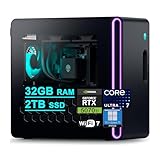
- 32GB RAM | 2TB SSD
- Equipped With The Most Powerful and Fast Intel 20-core Ultra 7 265F
- Dedicated NVIDIA GeForce RTX 5070 Ti 16GB GDDR7 Graphic
Best for: Feature-rich Alienware performance tower.
A 20-core Intel Ultra 7 265F paired with a dedicated NVIDIA GeForce RTX 5070 Ti 16GB gives this Alienware tower a strong spec mix for Blender rendering and multitasking. The 32GB RAM and 2TB SSD give it enough working space for active projects while keeping the system responsive.
The 240mm liquid cooler is worth noting because sustained Blender workloads can keep the processor busy for long periods, and liquid cooling helps maintain steadier performance. A 1000W platinum-rated PSU gives the desktop a large power reserve for its CPU and GPU combination, while WiFi7 and Killer E3100G 2.5G Gigabit Ethernet provide strong network options for cloud sync or asset transfer. The included wired keyboard and mouse make setup straightforward. With multiple USB-A, USB-C, and USB4 connections, this tower also handles a busy accessory load well. It reads as a high-performance desk machine for users who want a premium desktop experience.
Pros
- 20-core Intel Ultra 7 supports demanding Blender tasks
- RTX 5070 Ti 16GB offers strong dedicated GPU rendering support
- 2TB SSD gives room for projects and caches
- 240mm liquid cooler helps with sustained heavy workloads
Cons
- The 32GB memory is good, but not as generous as the largest workstation configurations in this roundup.
This Alienware tower suits Blender users who want strong performance plus a polished desktop setup. It is a good fit for artists who render often and want modern connectivity in the same machine.
| Specification | Details |
|---|---|
| Brand | Dell |
| CPU Model | Core i7 |
| CPU Speed | 2.5 GHz |
| Graphics Coprocessor | NVIDIA GeForce RTX 5070 Ti |
| Memory Storage Capacity | 2 TB |
| Ram Memory Installed Size | 32 GB |
| Personal computer design type | Computer Tower |
| Model Name | Alienware Aurora ACT1250 |
I see this as a strong choice for Blender users who also appreciate a premium desktop with lots of connectivity. The RTX 5070 Ti and 2TB SSD make it feel very capable for creative work, while the 32GB of RAM is enough for many practical projects. It is especially attractive if you want a high-performance tower that handles both Blender and everyday computing cleanly.
10. Lenovo ThinkStation P3 Tower Workstation Intel Ultra 9 285 vPro
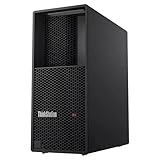
- Processor: Intel Core Ultra 9 285 vPro Processor (E-cores up to 4.60 GHz P-cores up to 5.40 GHz)
- Memory: 64 GB DDR5 Storage: 1 TB SSD M.2 2280 PCIe Gen4 Performance
- Graphic Card: NVIDIA RTX 4000 Ada Generation 20GB GDDR6 Warranty: 1 Year Lenovo Warranty
Best for: Engineer-focused workstation tower.
An Intel Core Ultra 9 285 vPro reaching up to 5.40 GHz on P-cores gives this Lenovo workstation the kind of CPU responsiveness Blender users feel when navigating complex projects. The 64GB DDR5 memory and 1TB PCIe Gen4 SSD create a stable base for active work, while the NVIDIA RTX 4000 Ada Generation 20GB GDDR6 adds serious graphics memory for rendering and visualization.
The tower measures 415mm by 180mm by 370mm and starts at 13.61kg, which tells you this is a full workstation chassis rather than a small desktop. Those dimensions usually mean better internal space for cooling and expansion than a compact box. The M.2 2280 PCIe Gen4 storage format helps fast project access, and the dedicated graphics card is well matched to professional Blender scenes that benefit from larger VRAM. The description also points to an engineer-oriented design, which aligns with work that mixes CAD, 3D content, and business use. For buyers comparing workstation specs, this is a very grounded professional option.
Pros
- Up to 5.40 GHz P-core speed supports responsive CPU work
- 64GB DDR5 memory helps with large Blender files
- RTX 4000 Ada Generation 20GB GDDR6 supports graphics-heavy tasks
- Full tower dimensions allow a workstation-style layout
Cons
- Only 1TB of SSD storage is listed, which may feel small for huge asset libraries.
This workstation is a good match for Blender users who want pro-level graphics memory and a CPU that can keep up with demanding scene work. It suits engineers, technical creators, and anyone who values a traditional tower workstation.
| Specification | Details |
|---|---|
| Brand | Lenovo |
| CPU Model | Core i9 |
| CPU Speed | 4.6 GHz |
| Cache Size | 64 GB |
| Graphics Coprocessor | NVIDIA RTX 4000 Ada Generation 20GB GDDR6 |
| Memory Storage Capacity | 128 GB |
| Personal computer design type | Computer Tower |
| Specific Uses For Product | Business |
| Dimensions | 415mm x 180mm x 370mm |
I’d steer Blender users toward this if they want a workstation that feels more technical than consumer-focused. The CPU speed and 20GB graphics memory are the main reasons it stands out for complex work, and the chassis size suggests a proper desktop platform. It is a sensible choice for users who care about professional consistency more than flashy extras.
Quick Comparison Table of Best Computer Specs for Blender
| Product Name | CPU | RAM | GPU | Best For | Check Price |
|---|---|---|---|---|---|
| Adamant Custom 24-Core Media Editing Rendering | 24-Core Ultra 9 | 64 GB | RTX 5070 Ti | Heavy Blender Work | Check Price |
| CPU Solutions VidCore Core Ultra 9 | Core Ultra 9 | 64 GB | Quadro RTX 2000ada | Video Editing Blender | Check Price |
| Adamant Custom 16-Core Editing Rendering Modelling | 16-Core Ryzen 9 | 64 GB | RTX 5070 Ti | Rendering and Modeling | Check Price |
| Dell Tower Desktop Computer, Intel 20-Core | Core Ultra 7 | 32 GB | RTX 5060 | Midrange Blender Use | Check Price |
| CLX Set Creator Workstation – AMD | Ryzen 9 9950X3D2 | Han DDR5 | RTX Pro 6000 | Pro-Level Rendering | Check Price |
| Lenovo ThinkStation P3 Tower Gen 2 | Core Ultra i9 | Unknown | RTX 4000 Ada | Professional Workstation | Check Price |
| GMKtec Gaming Mini PC AMD Ryzen | Ryzen 7 | Unknown | Radeon 780M | Light Blender Use | Check Price |
| HP Envy Desktop PC 2TB SSD | Core i9-14900K | 64 GB | GeForce RTX | High-Performance Blender | Check Price |
| Dell Alienware Aurora ACT1250 Gaming Desktop | Ultra 7 265F | 32 GB | RTX 5070 Ti | Gaming and Blender | Check Price |
| Lenovo ThinkStation P3 Tower Workstation Intel | Core Ultra 9 285 | 64 GB | RTX 4000 Ada | Serious 3D Work | Check Price |
How to Choose the Right Best Computer Specs for Blender
Cpu power for modeling and rendering
Choose a CPU that matches the kind of Blender work you do most. For modeling, sculpting, and moving around dense scenes, single-core speed matters most, so look for a high boost clock, strong IPC, and at least 6 fast cores; weak chips with low clocks feel sluggish in the viewport even when the core count looks impressive. For final renders and heavy simulation work, more cores and threads win, so 12 to 16 cores is the sweet spot for serious creators, while 8 cores suits lighter work.
Pick a high-clock 8-core for artists focused on responsive scene work, and a 12- to 16-core chip for users who render often and run simulations.
Gpu performance for viewport and ray tracing
For Blender, the GPU choice affects both viewport fluidity and Cycles rendering speed, so choose an accelerator with strong Blender support, ample VRAM, and enough shader power for your scene size. Look for CUDA or OptiX support on the NVIDIA side when you want the broadest acceleration in Blender, or another supported GPU family with similar compute strength. For complex projects, 12GB of VRAM is the practical floor, 16GB or more is better for large textures, detailed geometry, and high-resolution output; 8GB suits smaller scenes.
Pick the fastest supported GPU you can pair with enough VRAM for your asset size, and choose a 12GB card for mixed work or a 16GB-plus card for large professional scenes.
| GPU tier | Best for |
|---|---|
| 8GB VRAM, midrange compute | Smaller scenes, learning, lighter viewport work |
| 12GB VRAM, strong compute | Mixed modeling and rendering, moderate texture sets |
| 16GB+ VRAM, high compute | Large scenes, high-res assets, heavy Cycles workloads |
Memory and storage capacity
Memory and storage need to match the size of your scenes, caches, and asset library. Start with 32GB RAM as the practical baseline for Blender, because it handles most modeling, animation, and moderate simulations without constant swapping; 64GB is the right choice for large scenes, particle systems, and serious fluid or smoke work, while 16GB fits only light projects. On storage, pick a fast NVMe SSD for the operating system, Blender, and active project files, then add a second SSD or external drive for archives and backups.
Choose 32GB with a 1TB NVMe drive for general creators, and 64GB with multiple fast drives for simulation-heavy users.
| Capacity | Best for |
|---|---|
| 16GB RAM / 500GB SSD | Basic learning and small projects |
| 32GB RAM / 1TB NVMe SSD | Most Blender users and everyday production |
| 64GB+ RAM / 2TB+ fast SSDs | Large scenes, caches, and multiple active assets |
Cooling, power, and system stability
Stability matters because Blender sessions often run for hours, so choose cooling, power, and case airflow with sustained load in mind. Use a CPU cooler with enough thermal capacity for the processor class you buy, and pick a case with clear front intake, rear exhaust, and room for multiple fans so render heat leaves the system quickly. For the power supply, select an 80 Plus Gold unit with enough wattage headroom for your CPU and GPU combination, not a barely sufficient unit that runs hot and noisy; strong systems benefit from 750W to 1000W depending on the graphics card.
Pick a quiet, high-airflow tower with a quality PSU for long daily renders, and choose a more modest cooling setup only for lighter Blender work.
| Setup | Best for |
|---|---|
| Midrange airflow, 650W-750W PSU | Entry and midrange Blender PCs |
| High-airflow case, 750W-850W Gold PSU | Most serious creator systems |
| Large cooler, 850W-1000W Gold PSU | High-end CPUs, powerful GPUs, long renders |
Which Should You Choose?
- If you’re doing heavy Blender scenes, frequent simulations, or lots of multitasking, choose a 24-core CPU with 64GB RAM and a strong 360mm liquid cooler.
- If your workflow is mostly rendering, video editing, and GPU-accelerated viewport work, choose a fast 16-core processor paired with a mid-to-high-end NVIDIA RTX graphics card.
- If you need a balanced workstation for modeling, animation, and reliable everyday production, choose a 20-core CPU, 32GB to 64GB RAM, and at least 1TB SSD storage.
- If you want a compact machine for lighter Blender projects and general creative work, choose an 8-core mobile-class processor with 16GB to 32GB RAM.
Quick Best Computer Specs For Blender Buying Checklist
- Match CPU strength to your workflow prioritize more cores for rendering and strong single-core speed for responsive modeling.
- Choose a capable GPU ensure the graphics card supports fast viewport performance and has enough VRAM for detailed scenes.
- Get sufficient RAM select memory that can handle multitasking, simulations, and large project files without slowdowns.
- Use fast SSD storage keep Blender, caches, and active projects on solid-state storage for quicker loading and saving.
- Check cooling and airflow pick a system that can maintain stable temperatures during long renders and heavy scene work.
- Verify power and upgrade room make sure the motherboard, PSU, and case can support future graphics or memory upgrades.
How Blender Uses CPU and GPU During Different Tasks
Blender does not rely on one part of your computer for everything. The CPU handles scene management, simulation, rigging, and many background tasks, while the GPU is especially important for viewport performance and GPU rendering in supported engines. In practice, a balanced system feels faster than one with only a strong graphics card or only a high-end processor.
Heavy particle effects, cloth, smoke, and compositing can lean more on the CPU, while complex meshes and shader-heavy scenes benefit from more VRAM and faster GPU throughput. Understanding this split helps explain why Blender runs best on hardware that matches your workflow instead of chasing only one headline spec.
Why Memory Capacity and Speed Matter in Large Scenes
RAM affects how much scene data Blender can keep accessible without slowing down or swapping to disk. Large textures, detailed geometry, caches from simulations, and multiple open files all increase memory demand. When RAM runs short, playback and rendering can become sluggish even if the CPU and GPU are powerful.
Faster memory can also help, but capacity usually matters more than raw speed for most artists. A system with enough headroom lets you keep more assets in memory, scrub timelines more smoothly, and work with fewer crashes caused by resource pressure.
For heavier scenes, it is smarter to prioritize ample RAM first and then look at speed and timing.
Storage Setup for Faster Project Loading and Caching
Storage affects how quickly Blender opens files, loads textures, writes caches, and saves backups. A solid-state drive is far better than a hard drive for active projects because it reduces waiting during launches and asset imports. Using one fast drive for the operating system and applications, and another for current projects or cache files, can keep the system responsive under load.
This is especially useful when simulations generate large temporary files or when scenes reference many linked assets. Good storage organization also lowers the chance of bottlenecks that make a powerful workstation feel slow.
Fast storage does not replace CPU or GPU power, but it makes the entire workflow smoother.
Workstation Features That Improve Stability in Blender
For Blender, stability matters almost as much as raw speed. Workstation-class features such as strong cooling, reliable power delivery, and compatibility with professional drivers can reduce crashes during long renders or intensive simulation work. A stable system is less likely to throttle when all cores and the GPU are under sustained load.
Multiple high-speed USB ports, room for future upgrades, and enough expansion slots also help if you use pen tablets, external drives, or capture devices. Quiet cooling is another practical benefit, since long sessions become easier when the machine stays cool without distracting noise.
These details may not sound glamorous, but they often determine how dependable the computer feels in daily production.
Common Spec Mismatches That Limit Blender Performance
Some computers look strong on paper but still struggle in Blender because one weak component creates a bottleneck. A fast processor paired with too little RAM can stall on big scenes. A powerful GPU with limited VRAM may handle simple viewports well but choke on large textures and high-resolution renders.
Slow storage can make file management feel delayed even when rendering speed is good. Another common issue is buying a system with poor cooling, which leads to throttling during long sessions.
The most effective approach is to match the full configuration to the type of work you plan to do rather than focusing on one spec in isolation. Balanced hardware usually delivers a better experience than one standout component supported by weak parts.
Frequently Asked Questions (FAQs)
What Cpu Is Best For Blender Work?
The best CPU for Blender work combines strong single-core speed with multiple cores for rendering. A faster processor helps modeling, animation playback, and sculpting feel responsive, while extra cores reduce wait times in Cycles and simulation-heavy projects.
How Much Ram Do I Need For Blender?
Blender usually runs best with at least 16 GB of RAM, but 32 GB or more is better for large scenes and multitasking. More memory helps when working with high-resolution textures, complex modifiers, and physics simulations that can quickly fill system resources.
Is A Powerful Gpu Important For Blender?
Yes, a powerful GPU is important for Blender because it speeds up viewport interaction and can greatly improve GPU rendering. Look for enough VRAM to hold detailed models, textures, and lighting data so large scenes stay smooth and stable.
Do I Need An Ssd For Blender Projects?
Yes, an SSD is very helpful for Blender projects because it loads files, caches, and assets much faster than a hard drive. A fast NVMe SSD can reduce waiting during scene opens, texture imports, and simulation cache reads.
How Much Storage Should A Blender Computer Have?
A Blender computer should have enough storage for operating system files, software, projects, and caches without constantly running out of space. Many creators benefit from a primary SSD for active work and a second drive for archives and backups.
Does Cooling Matter For Blender Performance?
Yes, cooling matters for Blender performance because long renders can keep the CPU and GPU under heavy load for extended periods. Good airflow and a capable cooler help prevent thermal throttling, which keeps performance steadier during demanding sessions.
What Specs Matter Most For Blender Beginners?
The most important specs for Blender beginners are a capable CPU, a solid GPU, enough RAM, and an SSD. These parts keep the interface responsive, reduce render delays, and make learning easier by avoiding slowdowns in everyday tasks.
Final Suggestions
Choosing the best computer specs for blender helps you work faster, render more efficiently, and handle complex scenes with less frustration. Strong processing, ample memory, fast storage, and reliable cooling create a smoother creative experience for modeling, animation, and rendering. With the right balance of components, you can build a setup that supports your skills as they grow.

