Top 5 Best Pc Build For Blender: Must-See Picks
best pc build for blender matters when every second of rendering and every frame in the viewport can affect your workflow. In Blender, the right hardware balance shapes how smoothly you model, animate, sculpt, and render complex scenes. A strong blend of CPU power, GPU acceleration, memory bandwidth, and fast storage can reduce bottlenecks that slow down creative momentum.
The best pc build for blender is not just about raw specs; it is about how components work together for stability, thermals, and long-session performance. From multi-core processing to CUDA or OpenCL support, each choice can influence output quality and productivity.
The details behind a capable Blender workstation reveal more than benchmarks at first glance, and that is where the most important decisions begin.
In-depth Reviews of the Best PC Build for Blender
1. Adamant Custom 16-Core Editing Rendering Modelling AI Learning Workstation Computer
No products found.
Best for: Maximum Blender headroom.
192GB of DDR5 memory gives this Adamant Custom workstation enormous room for large Blender scenes, multitasking, and background simulation work. Paired with a 16-core Ryzen 9 9950X at 4.3GHz, it can keep heavy modeling, rendering, and AI-related tasks moving without forcing you to close everything else.
A 4TB M.2 NVMe 990 EVO PCIe 4.0 SSD gives you fast project loading and plenty of local room for caches, textures, and source files. The Geforce RTX 5070 Ti with 16GB of dedicated VRAM adds extra space for GPU rendering and complex viewport work, while the 360mm AIO liquid cooler helps keep the 16-core CPU under control during long export sessions. An X870 TUF Series motherboard, 850W Smart 80 PLUS Bronze power supply, and Windows 11 Pro 64-bit round out a configuration aimed at sustained workstation use. Wi-Fi 7 and Bluetooth v5.4 add current wireless connectivity for a modern desk setup.
Pros
- 192GB DDR5 memory supports very large Blender projects and heavy multitasking
- 16-core Ryzen 9 9950X provides strong CPU throughput for modeling and rendering
- RTX 5070 Ti 16GB offers generous dedicated VRAM for GPU-heavy scenes
- 4TB PCIe 4.0 NVMe SSD leaves ample fast storage for assets and caches
Cons
- The 850W Smart power supply is only 80 PLUS Bronze, so it is less efficiency-focused than higher-tier PSU options.
For Blender users who open big scenes, keep many apps running, or lean on GPU rendering, this configuration has the parts that matter most. The memory and storage capacity make it especially attractive for serious project work and long sessions.
| Specification | Details |
|---|---|
| Brand | Adamant Custom |
| CPU | AMD Ryzen 9 9950X |
| CPU Speed | 4.3 GHz |
| CPU Cores | 16-Core |
| Memory | 192GB DDR5 |
| Storage | 4TB M.2 NVMe 990 EVO PCI Express 4.0 |
| Graphics | Geforce RTX 5070 Ti 16GB |
| Motherboard | X870 TUF Series |
| Power Supply | Smart 850W 80 PLUS Bronze |
I’d point Blender users with large scenes and lots of multitasking toward this machine first. The 192GB of RAM is the headline, but the 16-core CPU and 16GB GPU memory make it feel balanced for demanding creative work rather than just one benchmark. If you keep many assets, simulations, and apps open at once, this is the kind of setup that stays comfortable.
2. Adamant Custom 16-Core Editing Rendering Modelling AI Learning Workstation Computer
No products found.
Best for: Balanced high-end creator pick.
64GB of DDR5 memory gives this Adamant Custom tower enough breathing room for Blender modeling, texture work, and concurrent apps without jumping into an extreme memory build. The same 16-core Ryzen 9 9950X at 4.3GHz keeps CPU rendering and scene prep firmly in workstation territory.
Its 1TB M.2 NVMe 990 EVO PCIe 4.0 SSD is quick enough for project files, but the capacity is more focused than the larger configuration, so it suits users who keep assets organized or rely on external storage. A Geforce RTX 5070 Ti with 16GB of VRAM helps with GPU rendering and complex viewport scenes, while the 360mm AIO cooler is there for long compute sessions. The X870 TUF Series motherboard, 850W Smart 80 PLUS Bronze PSU, and Windows 11 Pro 64-bit make it a modern desktop foundation for creative work. Wi-Fi 7 and Bluetooth v5.4 add current wireless support without extra adapters.
Pros
- 64GB DDR5 is a practical ceiling for serious Blender work without overspending on excess RAM
- 16-core Ryzen 9 9950X handles CPU-based rendering and multitasking well
- RTX 5070 Ti 16GB supports GPU rendering and larger scene data
- 360mm AIO cooling suits extended load times during renders and simulations
Cons
- The 1TB SSD can fill quickly once Blender caches, source footage, and asset libraries pile up.
This configuration makes sense if you want strong Blender performance without going all the way to the largest memory and storage option. It is a sensible match for creators who work in active projects and can manage storage carefully.
| Specification | Details |
|---|---|
| Brand | Adamant Custom |
| CPU | AMD Ryzen 9 9950X |
| CPU Speed | 4.3 GHz |
| CPU Cores | 16-Core |
| Memory | 64GB DDR5 |
| Storage | 1TB M.2 NVMe 990 EVO PCI Express 4.0 |
| Graphics | Geforce RTX 5070 Ti 16GB |
| Motherboard | X870 TUF Series |
| Power Supply | Smart 850W 80 PLUS Bronze |
I like this one for Blender users who want strong core performance and modern GPU support without jumping to an oversized setup. The 64GB of RAM is enough for a lot of practical scene work, and the RTX 5070 Ti’s 16GB VRAM is a real benefit when rendering or handling heavier assets. It feels like the more restrained, easier-to-manage option in the pair.
3. iBUYPOWER Element Gaming PC Desktop Computer AMD Ryzen 9 7900X

- AMD Ryzen 9 7900X, NVIDIA GeForce RTX 5070 12GB, 32GB DDR5 RGB 4800MHz 16x2 1TB NVMe SSD, WIFI Ready, Windows 11 Home
- Connectivity: 6 x USB 3.1 | 1x RJ-45 Network Ethernet 10/100/1000 | Audio: On board audio
- Special Add-Ons: Tempered Glass RGB Gaming Case | 802.11AC Wi-Fi Included | 16 Color RGB Lighting Case | Free iBuyPower Gaming...
Best for: Creative all-rounder with extras.
32GB of DDR5 RGB memory and a 1TB NVMe SSD make this iBUYPOWER tower a straightforward starting point for Blender projects, everyday use, and gaming. The Ryzen 9 7900X paired with an RTX 5070 12GB gives it the core and graphics power needed for modeling, viewport work, and moderate rendering loads.
The 4.7GHz CPU speed helps when you move between scene editing, simulation setup, and export tasks, while the 32GB installed memory is enough for many smaller-to-mid Blender files. A dedicated RTX 5070 with 12GB of VRAM gives you GPU acceleration without stepping into the larger workstation-class memory figures above. The tempered glass RGB case, 16-color lighting, included keyboard, and RGB mouse make it a fuller out-of-box package, and the 802.11AC Wi-Fi plus six USB 3.1 ports help with connectivity. Windows 11 Home and the no-bloatware setup keep the system simple to start using right away.
Pros
- Ryzen 9 7900X at 4.7GHz gives solid CPU speed for Blender tasks
- RTX 5070 12GB supports GPU rendering and real-time viewport work
- 32GB DDR5 memory covers many common creative workflows
- Included keyboard, mouse, and Wi-Fi reduce setup friction for a new desk build
Cons
- The 12GB GPU memory is less spacious than 16GB options, which can matter with larger Blender scenes or heavier texture loads.
For a user who wants a broad-use desktop that can handle Blender plus gaming and day-to-day work, this is an easy pick. It offers enough graphics and memory muscle to be useful without feeling overly specialized.
| Specification | Details |
|---|---|
| Brand | iBUYPOWER |
| CPU | AMD Ryzen 9 7900X |
| CPU Speed | 4.7 GHz |
| Graphics | RTX 5070 12GB |
| Memory | 32GB DDR5 RGB 4800MHz |
| Storage | 1TB NVMe SSD |
| Wireless | 802.11AC Wi-Fi Included |
| Ports | 6 x USB 3.1 |
| Design Type | Computer Tower |
I’d suggest this to someone who wants one machine for Blender, general work, and gaming rather than a pure rendering box. The included peripherals and wireless support make it convenient, and the Ryzen 9 plus RTX 5070 combination is respectable for creative work. If your Blender files are moderate in size, this should feel comfortable and uncomplicated.
4. CyberPowerPC Gaming PC, AMD Ryzen 9 9900X, GeForce RTX 5070
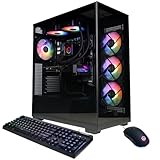
- System: AMD Ryzen 9 9900X 4.4GHz 12 Cores | AMD B850 Chipset | 32GB DDR5 | 1TB PCIe 4.0 NVMe SSD | Windows 11 Home
- Graphics: NVIDIA GeForce RTX 5070 12GB Graphics | 1x HDMI | 3x DisplayPort
- Connectivity: 2 x USB-C 3.2 | 4 x USB-A 3.2 | 2 x USB-A 2.0 | 1 x LAN | WiFi 6 | Bluetooth 5.3 | 7.1 Channel Audio

Best for: Strong value for mid-range scenes.
A Ryzen 9 9900X at 4.4GHz gives this CyberPowerPC a fast starting point for Blender modeling, scene setup, and CPU-heavy tasks. With 32GB of DDR5 memory and a 1TB PCIe 4.0 NVMe SSD, it has the basics in place for a creator who wants quick load times and responsive multitasking.
The GeForce RTX 5070 with 12GB of graphics memory adds GPU rendering support and helps with viewport responsiveness in complex scenes. An AMD B850 chipset, liquid-cooled CPU, and tempered side panel keep the platform focused on sustained desktop work, while the 1x HDMI and 3x DisplayPort outputs make multi-display setups easy to wire. Connectivity is practical too, with 2 x USB-C 3.2, 4 x USB-A 3.2, 2 x USB-A 2.0, LAN, WiFi 6, and Bluetooth 5.3. The included keyboard and mouse add convenience, and Windows 11 Home keeps the system familiar for everyday use.
Pros
- Ryzen 9 9900X at 4.4GHz is well suited to Blender CPU tasks
- RTX 5070 12GB supports GPU acceleration and rendering
- 32GB DDR5 memory is a workable baseline for many creative projects
- 1TB PCIe 4.0 NVMe SSD offers fast load times for assets and scenes
Cons
- The 12GB GPU memory may be limiting for especially large Blender scenes compared with 16GB cards.
This is a practical choice for Blender users who want a capable desktop without chasing the most oversized configuration. It balances CPU speed, fast storage, and current connectivity in a clean tower layout.
| Specification | Details |
|---|---|
| Brand | CyberPowerPC |
| CPU | AMD Ryzen 9 9900X |
| CPU Speed | 4.4 GHz |
| CPU Cores | 12 Cores |
| Memory | 32GB DDR5 |
| Storage | 1TB PCIe 4.0 NVMe SSD |
| Graphics | NVIDIA GeForce RTX 5070 12GB |
| Chipset | AMD B850 Chipset |
| Wireless | WiFi 6 |
I see this as a sensible middle ground for Blender users who want solid speed and modern I/O without paying for a huge memory pool. The 12-core Ryzen and RTX 5070 should handle a lot of practical creative work smoothly. If your scenes are moderate and you value a clean, well-equipped tower, this is easy to recommend.
5. The Horizon Autherium Dragon RGB I9 RTX Gaming PC ||

- System: Core i9 Unlocked OC CPU | Premium Chipset | 64GB Ram (Twice the high end average of 32GB in other systems) | 4TB Storage...
- Graphics: NVIDIA GeForce RTX 5070 OC 12GB | Factory overclocked for higher and more consistent frame rates | Real-time ray tracing...
- Cooling & Design: 360mm Liquid Cooling | Intelligently controlled Fan Speeds for whisper quiet performance | ARGB Lighting...
Best for: Storage-rich power user choice.
5TB of total storage gives this Horizon Autherium build an immediate advantage for Blender libraries, texture packs, source footage, and backup files. A Core i9 unlocked CPU at 4.8GHz paired with 64GB of RAM and an RTX 5070 OC 12GB creates a high-throughput desktop for demanding creative workloads.
The storage split matters here: a 1TB M.2 NVMe SSD can reach up to 7000MB/s, so active project files open quickly, while the 4TB 7200RPM HDD holds bulk archives and less-frequent assets. An extra M.2 NVME and HDD port leaves room for future expansion, which is useful if Blender projects keep growing. The factory overclocked RTX 5070 OC 12GB is intended for more consistent frame rates, and the Windows 11 Pro installation adds advanced security and device control. With 64GB of RAM and a premium chipset, this tower focuses on sustained creative work and large file management.
Pros
- 5TB total storage keeps large Blender libraries and media archives on hand
- 1TB NVMe SSD up to 7000MB/s speeds supports fast project loading
- 64GB RAM helps with multitasking and larger scene work
- Extra M.2 NVME and HDD port provides expansion room for future storage
Cons
- The 12GB GPU memory is less roomy than 16GB alternatives for the very largest Blender scenes.
If your Blender workflow includes lots of assets, long timelines, or many stored project files, this system is especially appealing. The blend of fast SSD space, large HDD capacity, and expandable storage makes it easy to live with over time.
| Specification | Details |
|---|---|
| Brand | The Horizon Pcs |
| CPU | Core i9 Unlocked OC CPU |
| CPU Speed | 4.8 GHz |
| Memory | 64GB RAM |
| Storage | 5TB Total |
| SSD | 1TB M.2 NVMe up to 7000MB/s speeds |
| HDD | 4TB 7200RPM HDD |
| Graphics | NVIDIA GeForce RTX 5070 OC 12GB |
| Design Type | Computer Tower |
I’d favor this for Blender users who are constantly juggling large assets and don’t want to think about storage too often. The fast 1TB SSD handles active work, and the 4TB hard drive is useful for keeping big libraries nearby. Add in 64GB of RAM and a strong Core i9 platform, and it feels like the most storage-conscious choice in the group.
Quick Comparison Table of Best PC Builds for Blender
| Product Name | CPU | GPU | RAM | Best For | Check Price |
|---|---|---|---|---|---|
| Adamant Custom 16-Core Editing Rendering Modelling | Ryzen 9 9950X | RTX 5070 Ti | 192GB DDR5 | Heavy Blender work | Check Price |
| Adamant Custom 16-Core Editing Rendering Modelling | Ryzen 9 9950X | RTX 5070 Ti | 64GB DDR5 | Serious Blender use | Check Price |
| iBUYPOWER Element Gaming PC Desktop Computer | Ryzen 9 7900X | RTX 5070 12GB | 32GB DDR5 | Balanced 3D work | Check Price |
| CyberPowerPC Gaming PC, AMD Ryzen 9 | Ryzen 9 9900X | RTX 5070 12GB | 32GB DDR5 | Core Blender tasks | Check Price |
| The Horizon Autherium Dragon RGB I9 | Core i9 | RTX 5070 | 64GB RAM | Editing and 3D | Check Price |
How to Choose the Best PC Build for Blender
Cpu core count and clock speed
For Blender, choose a CPU with a strong mix of core count and clock speed, not one or the other. Six cores is the floor for casual modeling and light rendering, eight cores is the sweet spot for most users, and 12 or more cores suits frequent final-frame rendering and heavy simulation work. High boost clocks matter because the viewport, modifiers, and many interactive tasks respond better to fast single-core performance.
Look for modern CPUs with high sustained boost speeds, strong per-core performance, and enough threads to keep background tasks smooth. Pick an 8-core, high-clock processor for most creators; choose 12+ cores only for users who render often and work on complex scenes.
| CPU type | Best for |
|---|---|
| 6-core, high-clock | Light modeling, student projects, simple scenes |
| 8-core, high-clock | Best all-around Blender work |
| 12+ cores, strong boost | Heavy simulation and frequent final renders |
Gpu power for viewport and rendering
For viewport smoothness and Cycles rendering, choose the graphics card that matches the size of your scenes and the pace of your workflow. A midrange GPU handles modeling and moderate GPU rendering well, while a faster card shortens final renders and keeps the viewport responsive on dense meshes, particle systems, and textured assets. VRAM is the key filter: 8GB suits smaller projects, 12GB is the safe minimum for serious Blender work, and 16GB or more is the right choice for large scenes, high-resolution textures, and complex shader stacks.
Prefer cards with ample VRAM, strong ray-tracing performance, and stable Blender driver support. Pick 8GB for light creators, 12GB for most users, and 16GB+ for texture-heavy production.
| VRAM tier | Best for |
|---|---|
| 8GB | Entry-level scenes and moderate viewport work |
| 12GB | Best balance for most Blender users |
| 16GB+ | Large environments, heavy textures, complex rendering |
Memory capacity and storage setup
For memory and storage, match capacity to scene complexity and keep your active projects on fast SSDs. 16GB RAM is enough for basic modeling and small scenes, 32GB is the practical target for most Blender users, and 64GB or more suits simulation-heavy, asset-rich workflows. Fast NVMe storage cuts load times, speeds cache access, and keeps large project files moving smoothly; a small SATA drive does not deliver the same responsiveness.
Use a two-drive setup when possible: one fast SSD for the operating system and active projects, another larger drive for libraries, exports, and archives. Pick 32GB RAM plus NVMe storage for most creators; choose 64GB and multiple SSDs for complex production work.
| RAM / storage setup | Best for |
|---|---|
| 16GB + single NVMe SSD | Small scenes and learning Blender |
| 32GB + fast NVMe SSD | Best all-around setup |
| 64GB+ + dual SSDs | Large simulations and big asset libraries |
Cooling, case airflow, and power delivery
For long Blender sessions, choose cooling, airflow, and power delivery that stay steady under sustained load. A good case uses a mesh front, wide intake paths, and support for at least three fans so heat leaves the system quickly. Larger CPU coolers and strong GPU spacing reduce throttling during long renders, while a quality power supply keeps voltage stable when both the CPU and GPU are working hard.
Look for a PSU with enough wattage headroom, 80 Plus efficiency, and a full set of protections; a cheap underpowered unit risks crashes and instability. Pick a high-airflow case with multiple fans and a reputable PSU sized for your components; choose a strong tower cooler or liquid cooling for high-core CPUs.
| Component choice | Best for |
|---|---|
| Mesh case with 3+ fans | Cool, steady rendering sessions |
| Large tower cooler | Most CPUs with sustained loads |
| High-wattage quality PSU | Systems with fast CPU and GPU parts |
Which Should You Choose?
- If you want the strongest CPU-focused Blender workstation for heavy simulation and rendering tasks, choose a 16-core processor with a 360mm liquid cooler and an X870-class motherboard.
- If you need a balanced Blender PC for modeling, viewport work, and GPU-accelerated renders, choose an RTX 5070-class graphics card with 32GB of DDR5 memory.
- If you work with larger scenes, multitask across Blender and other creative apps, or keep many assets open, choose 64GB of RAM and at least 1TB of fast NVMe storage.
- If you want a dependable all-around Blender build without going overboard on extras, choose a 12-core CPU, 32GB of RAM, and a 1TB PCIe 4.0 SSD.
Quick Best Pc Build For Blender Buying Checklist
- Prioritize CPU performance Choose a processor with strong core count and high boost clocks to handle modeling, simulation, and rendering.
- Match the GPU to your scene complexity Pick a graphics card with enough VRAM for large textures, detailed assets, and faster Cycles work.
- Install ample RAM Use enough memory to keep complex Blender scenes smooth and prevent slowdowns when multitasking.
- Use fast SSD storage A speedy solid-state drive helps with project loading, cache access, and managing large asset files.
- Plan for cooling Make sure the case, fans, and CPU cooler can maintain stable temperatures during long render sessions.
- Choose a dependable power supply Select a high-quality PSU with enough wattage and headroom for your full component list.
How Blender Uses CPU and GPU Resources
Blender splits work between the CPU and GPU depending on the task. The CPU handles scene management, simulation, baking, and many background operations, while the GPU can accelerate viewport rendering and final image or animation rendering through supported engines. For Cycles, a strong GPU often cuts render times dramatically, but the CPU still matters for geometry processing, physics, and general responsiveness.
If your projects include heavy particle systems, fluids, or complex rigs, a balanced system is usually smoother than a build that relies on one component alone. Fast storage and enough memory also help the software keep large scenes responsive when multiple assets are loaded at once.
Workstation Build Types for Different Blender Workloads
Not every Blender user needs the same hardware profile. Motion graphics artists often benefit from a balanced CPU and GPU setup, while architectural visualizers may prioritize VRAM and display output support for large, detailed scenes. Character artists working with sculpting and subdivision may value strong single-core speed and abundant RAM for comfortable editing.
A render-focused workstation can lean harder toward the GPU, while a general-purpose build should stay more even across processor, memory, and graphics capability. Matching the machine to the workload reduces bottlenecks and makes the system feel consistent during modeling, simulation, previewing, and final output.
| Build Type | Best for |
|---|---|
| Balanced workstation | General modeling, animation, and rendering |
| GPU-heavy build | Cycles rendering and viewport acceleration |
| CPU-focused build | Simulations, baking, and multitasking |
| Memory-rich build | Large scenes, textures, and complex rigs |
Why Memory Capacity Matters in Large Blender Scenes
RAM affects how comfortably Blender can hold scene data while you edit, preview, and render. Large texture sets, dense meshes, high-resolution caches, and multiple linked assets can quickly consume memory, causing slowdowns or forcing the system to rely on much slower storage. More memory is especially useful when you keep several applications open alongside Blender, such as reference viewers, image editors, and compositing tools.
Memory speed helps too, but capacity is usually the bigger priority once scenes become complex. A system that has enough RAM can maintain smoother interactions, faster loading, and more stable multitasking when projects grow in scale.
Storage Setup for Faster Project Loading and Caching
Storage affects how quickly Blender opens files, loads textures, and writes cache data for simulations. An SSD improves project launch times and makes large assets feel far more responsive than a mechanical drive. Separating the operating system, project files, and cache locations can reduce contention when multiple read and write tasks happen at once.
For example, keeping caches on a fast drive helps simulations update more efficiently, especially with fluid, smoke, or particle work. If you archive finished projects often, having additional high-capacity storage for backups and source assets also keeps your working drive cleaner and easier to manage over time.
Common Compatibility Checks Before Building a Blender PC
Before assembling the system, it helps to verify that the main components work together without limitations. The motherboard must support the chosen processor socket and memory generation, while the case needs enough clearance for the graphics card, cooler, and storage layout. Power delivery should match the GPU and CPU requirements, including the correct connectors.
For Blender users, display support matters too, since multiple monitors can make timeline control, node editing, and reference work more efficient. Driver support is another important check because stable graphics drivers can affect viewport behavior and rendering reliability.
A careful compatibility pass prevents build issues that can interrupt creative work later.
- Confirm CPU socket and chipset support.
- Match RAM type with motherboard slots.
- Check GPU length and power connector needs.
- Verify cooler height and case clearance.
- Make sure the power supply has enough headroom.
Frequently Asked Questions (FAQs)
What Cpu Is Best For A Blender Pc Build?
The best CPU for a Blender PC build is one with strong multi-core performance and solid single-core speed. Blender uses multiple threads for rendering and simulations, while modeling and navigation still benefit from fast boost clocks, so a balanced CPU is ideal.
How Much Ram Does The Best Pc Build For Blender Need?
The best PC build for Blender should have enough RAM to handle scene complexity without swapping to storage. For most users, 32 GB is a practical baseline, while larger projects, simulations, and heavy multitasking often benefit from 64 GB or more.
Is The Gpu Or Cpu More Important For Blender?
The GPU is very important in the best PC build for Blender, especially for viewport acceleration and Cycles GPU rendering. The CPU still matters for simulations, scene preparation, and some render tasks, so the strongest results come from a balanced system.
How Much Vram Should A Blender Graphics Card Have?
The best PC build for Blender should use a graphics card with enough VRAM for your scenes and textures. Larger environments, high-resolution materials, and detailed assets can quickly consume memory, so more VRAM helps avoid crashes and performance bottlenecks.
Why Does Storage Matter In A Blender Pc Build?
Storage matters in a Blender PC build because fast drives reduce load times and keep project files responsive. An SSD helps Blender open scenes, cache simulations, and access assets quickly, which makes daily work feel smoother and more efficient.
What Cooling Does A Blender Pc Build Need?
A Blender PC build needs effective cooling because long renders can keep the CPU and GPU under sustained load. A quality tower cooler or liquid cooler, plus a case with strong airflow, helps maintain stable performance and reduces thermal throttling.
How Can I Make A Blender Pc Build Reliable For Long Sessions?
A reliable Blender PC build uses a quality power supply, good airflow, and well-matched components. Stable power delivery and steady temperatures help the system handle long renders, heavy simulations, and frequent project saves without unnecessary interruptions.
Final Suggestions
In summary, the best pc build for blender combines a fast CPU, capable GPU, plenty of memory, and reliable cooling to keep creative work moving smoothly. That balance helps you model, simulate, and render with fewer slowdowns and more confidence. Choose components that fit your workflow, and you’ll have a powerful system ready to support every project ahead.